What can I do with my bot on Telegram?
- Ask for work while you're out. "Send me last month's sales sheet as a PDF" and the file arrives in the chat a minute later.
- Send it things. A photo of a receipt, a forwarded message, a PDF, an album of photos, a location or a contact: it gets all of it.
- Talk to it. Send a voice note and it hears it on your computer; it can answer with a voice note too (voice).
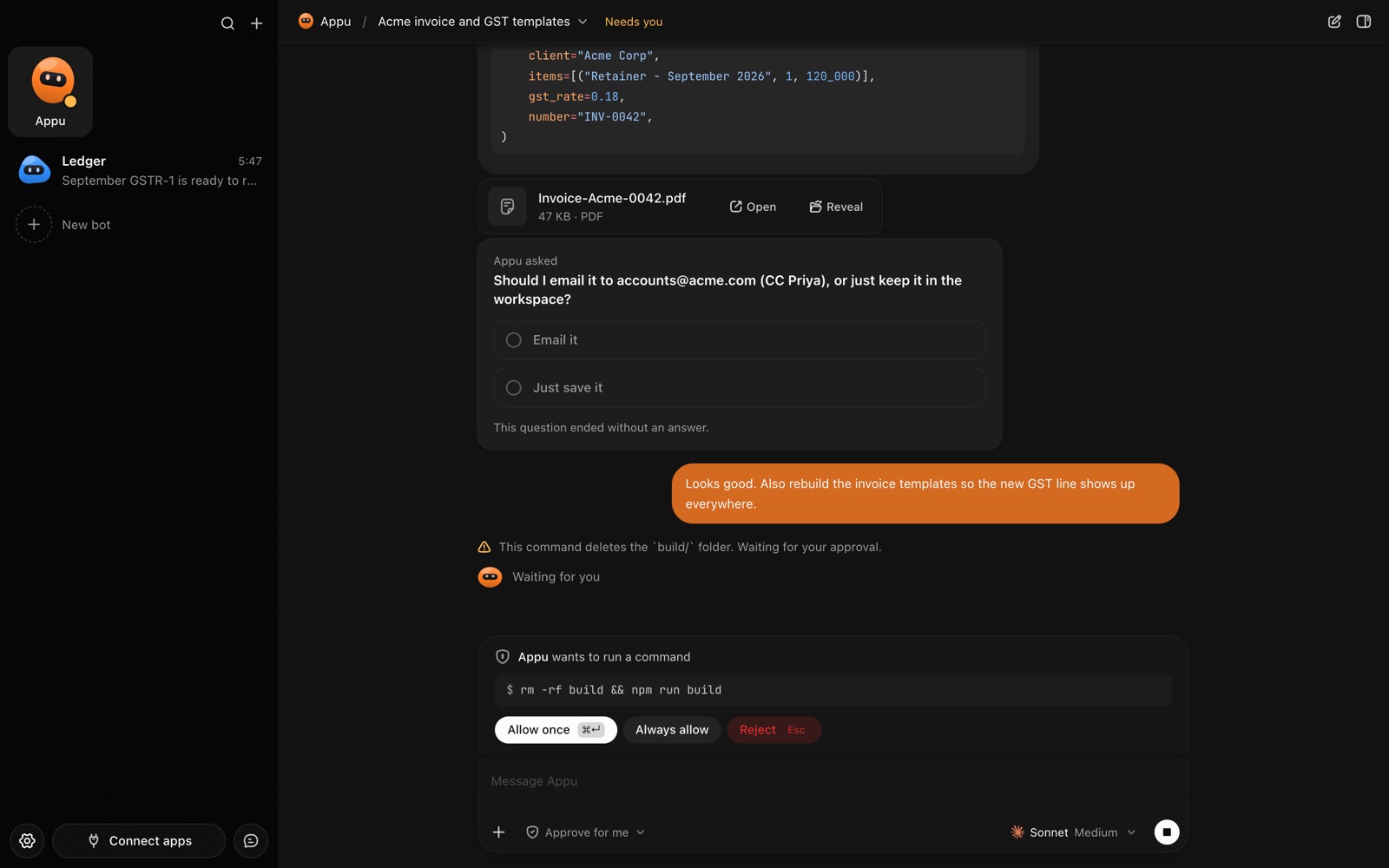
- Answer its questions. When it needs a choice or your OK, you get buttons right in the chat.
- Control it. /new starts a fresh chat, /stop stops it, /model and /mode change how it works, /memory shows what it remembers, /routines lists its schedules.
How do I set it up?
- In Telegram, open @BotFather, send /newbot and pick a name. BotFather gives you a long access key for it.
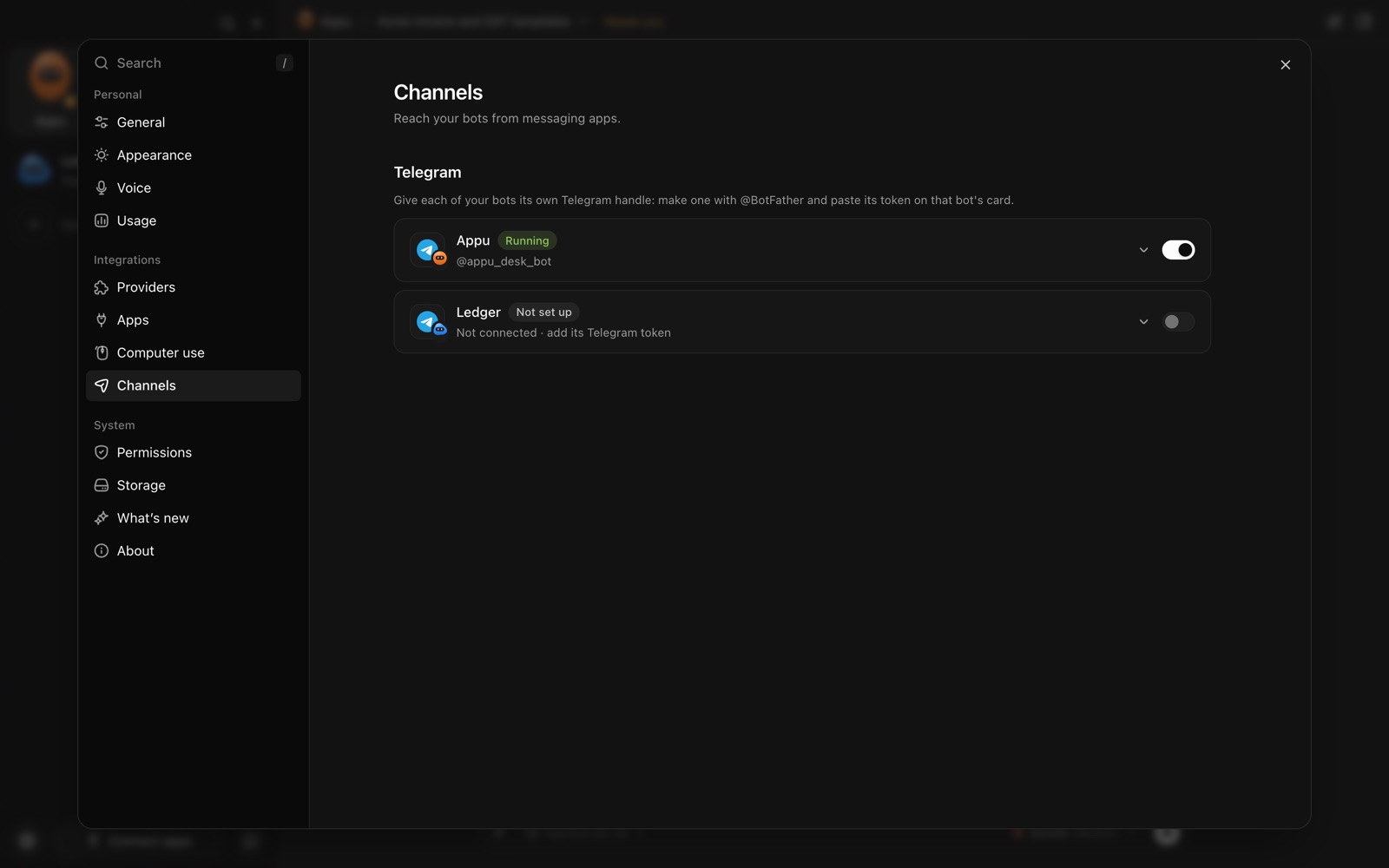
- In AppuBot, open Settings › Channels, open the card of the bot you want on Telegram and paste that key.
- Message your new Telegram bot. It answers with a pairing code; approve that code in AppuBot.
- Done. Your Telegram bot now wears your AppuBot bot's name, description and face, and answers as it.
Each AppuBot bot can have its own Telegram bot, so your accountant and your researcher are separate chats on your phone. See our Telegram guide for more detail.
How does it work behind the scenes?
Your phone talks to Telegram, and Telegram passes your messages to AppuBot on your computer. The bot does the work there, with your apps and files, and sends the answer back. There's no AppuBot server in between, and your computer needs to be on and AppuBot running (it can keep a Mac awake for that, even with the lid closed).
A message from Telegram goes to the bot's current chat, the same one you see in the app, so you can start something at your desk and finish it from your phone. Replies are formatted for Telegram, with bold, lists, tables and code that read well on a phone.