
Skip to content

Talk to your AI by voice, privately on your computer

Voice mode, menu bar calls, dictation and Telegram voice notes, with speech handled on your own computer.

By Sarthak Gupta · Updated

The short answer

You can talk to AppuBot bots: open voice mode in a chat and have a spoken conversation, start a call from the menu bar while you work, dictate a message, or send a voice note on Telegram and get one back. Hearing your voice and speaking the reply both happen on your own computer, so your audio is never sent anywhere; only the words go to the bot's AI, like a typed message.

A voice call with a bot from the menu bar
Call a bot from the menu bar and talk.

Ways to talk to a bot

  • Voice mode. Press the voice button in a chat and talk. The bot answers out loud as its reply comes in; talk over it to interrupt.
  • Menu bar calls. Pick a bot from AppuBot's menu bar icon and a small call bar opens at the bottom of your screen, over whatever you're doing.
  • Dictation. Press the mic in the composer, speak, and your words land in the message to edit before sending.
  • Telegram voice notes. Send your bot a voice note from your phone; it hears it on your computer and can answer with a voice note (Telegram).

How does voice mode work?

  1. The first time, AppuBot downloads its speech models (once; Settings › Voice shows them).
  2. Press the voice button. A glowing orb in the bot's colour shows it's listening.
  3. Speak naturally. AppuBot knows when you've finished a thought by your pauses, not just loudness, so a fan or the TV doesn't trigger it.
  4. The bot starts answering as soon as its first sentence is ready, and keeps working on the task while it talks.
  5. Interrupt by talking, tap the orb, or press Escape to end.

Which languages does it understand?

The standard hearing model covers 25 European languages. For about 100 languages, switch to the larger multilingual model in Settings › Voice; for Hindi and Hinglish there's a dedicated Hindi model that is quicker and more accurate. The bot's voice speaks 31 languages, with several voices to choose from.

The bot itself answers in whatever language you use, as its AI does.
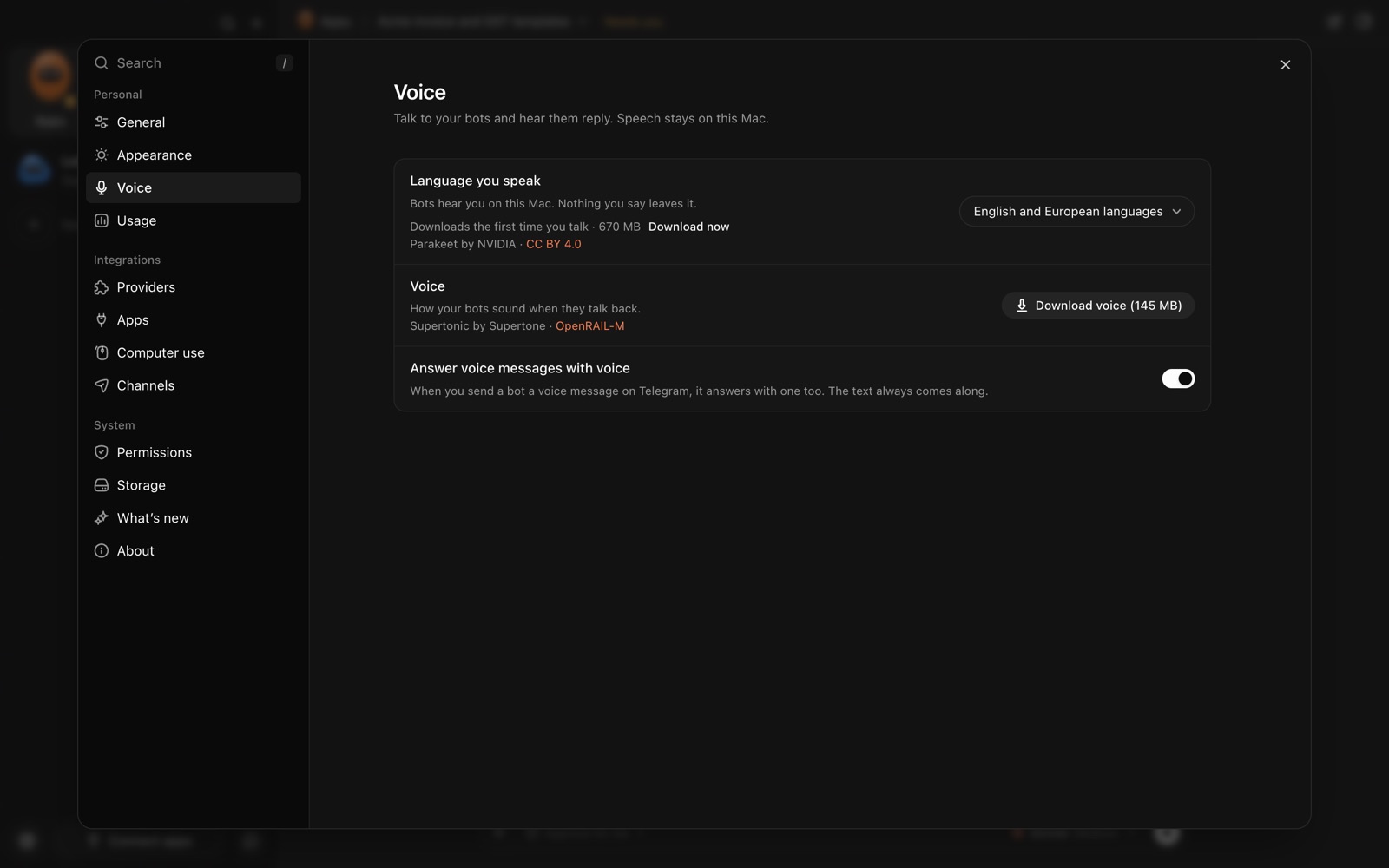
Settings, Voice in AppuBot: speech recognition and the voice run on your computer
Speech stays on your computer.

Is voice private?

Yes. Speech recognition and the voice both run on your computer's own processor; no audio goes to AppuBot or to the AI provider. The bot receives only the text of what you said. Your recording is kept with the message on your computer so you can play it back.

The speech models are free downloads and cost nothing to run. That also means voice works the same whichever agent the bot uses, from Claude Code to Codex.

When is voice better than typing?

Voice replies are kept short and plain, without tables or formatting; anything long, like a file or a list, the bot puts in the chat for you to read.

  • Hands busy. Cooking, driving with Telegram voice notes, sorting paper on your desk.
  • Thinking out loud. Describe a messy problem in your own words and let the bot turn it into a plan.
  • Quick checks during work. "What's my next meeting?" from the menu bar without leaving the app you're in.
  • Long messages. Dictation is faster than typing a long brief, and you can fix the words before sending.

Questions

Can I choose the bot's voice?

Yes. Settings › Voice has several voices to pick from, with a Listen button for each.

Can I talk to an AI assistant on my Mac hands-free?

Yes. Start a call from the menu bar or open voice mode, then just talk; the bot listens, answers out loud and keeps working.

Is my voice sent to the cloud?

No. Your audio is turned into text on your own computer; only the words go to the bot's AI, as if you had typed them.

Can my bot reply to Telegram voice notes with voice?

Yes. Turn on "Answer voice messages with voice" in Settings › Voice, or send /voice on in Telegram.

Does it work on Windows and Linux?

Yes, on Mac, Windows and Linux computers, except Windows on Arm for now.

Which languages can I speak to my bot in?

About 25 European languages with the standard model, about 100 with the larger multilingual one, and Hindi or Hinglish with the Hindi model, all chosen in Settings › Voice.

Meet your first bot

An AI teammate that works on your Mac, and tells you on Telegram