Skip to content

An AI that works on your computer while you keep using it

Bots act behind your windows while you keep working, and wait for a pause before they need the screen.

By Sarthak Gupta · Updated

The short answer

Work in the background lets AppuBot bots use the apps on your computer while you go on using it. Their apps stay behind your windows, their clicks and typing go to those windows rather than your keyboard and mouse, and the few steps that need the screen wait until you've paused for a moment. Then the bot borrows it briefly and puts your app and pointer back where they were.

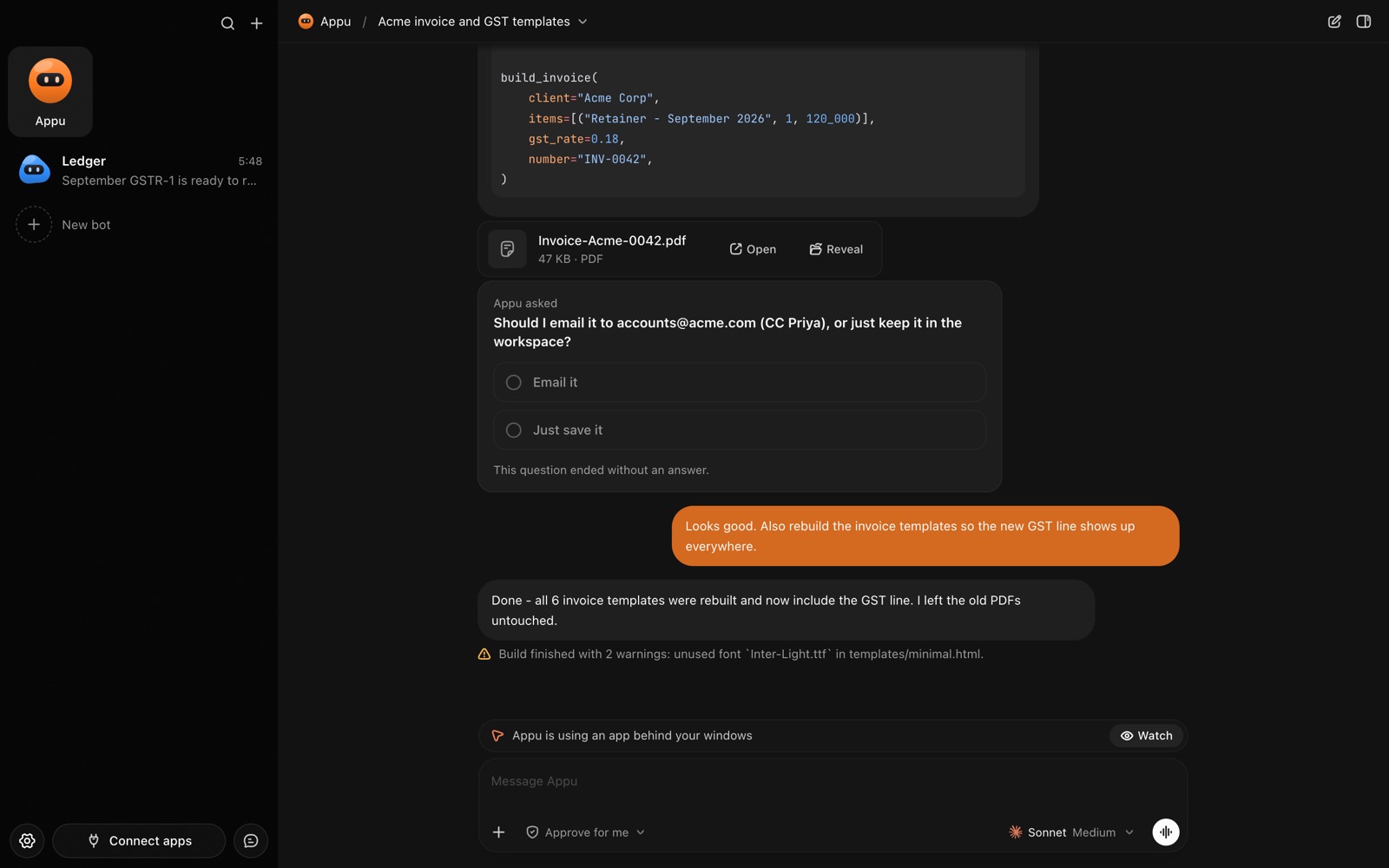
An AppuBot chat while a bot works in apps behind your windows
Work in the background: bots act behind your windows.

Why work in the background?

Normally, when a bot uses an app, AppuBot brings that window to the front so you can watch. That's reassuring for a new task, but not if you're writing an email at the same time. Background mode lets the bot get on with a long job, like entering fifty rows into a spreadsheet, while your screen stays yours.

How does it work?

  1. Turn on Work in the background in Settings › Computer use, from the menu bar icon, or from the line above the chat while a bot is using your computer.
  2. Ask for a task as usual. The bot opens the apps it needs without bringing them forward.
  3. Its clicks and typing go straight to those apps' windows. Your keyboard, mouse and front window are left alone.
  4. A few things only work in front, like dragging or some web page buttons. For those the bot waits until you have stopped typing and moving the mouse for about a second and a half.
  5. Then it brings the window forward for a moment, does that step, and puts back the app you were in and your pointer.

If you stay busy for about 25 seconds, the step doesn't happen and the bot is told you're busy, so it can try another way or come back to it.

How do I know what it is doing?

The chat shows a line while a bot is using your computer: which app it is working in behind your windows, with a Watch button to bring it forward. When it is waiting for you to pause, the line and the menu bar icon say so. The bot's pointer appears only where its window is actually visible.

You can switch back to on-screen mode at any time from that same line.

On screen or in the background?

On screen (default)In the background
Bot's windowComes to the frontStays behind yours
You canWatch every stepKeep working in other apps
SpeedFastestA little slower for steps that need the screen
Best forNew tasks, things you want to checkLong, familiar jobs

Either way the approvals you set still apply, and Stop works at any time.

A typical background job

You ask your bot to copy 40 orders from a supplier portal into your stock sheet, then go back to writing a document. The bot opens the portal in your browser and the sheet behind your document. Reading the portal and typing into the sheet happen in those windows without touching your keyboard. When a button on the web page needs a real click, the bot waits; the moment you stop typing to think, it clicks and your document is back in front in a blink.

When it's done you get a notification, and AppuBot doesn't jump in front of your work to tell you.

Questions

Can I watch a background bot if I want to?

Yes. Press Watch on the line above the chat to bring its window forward, or switch back to on-screen mode.

Can an AI agent use my Mac while I am using it?

Yes. With Work in the background on, an AppuBot bot works in apps behind your windows and only borrows the screen when you pause.

Will it type into the app I am using?

No. In background mode a bot's typing goes to its own app's window; if it has no window to type into, it isn't allowed to type at all.

Does background mode work on Windows and Linux?

Yes. On all three, after a borrowed step AppuBot puts back the window you were in and, where the system allows, your pointer.

Do I have to turn it on for each bot?

No. It is one setting for all bots, which you can flip from Settings, the menu bar or the chat.

Meet your first bot

An AI teammate that works on your Mac, and tells you on Telegram