OpenAI’s way: Codex on mobile
OpenAI calls its feature Codex on mobile. Its page says you can "follow progress, approve actions, and send instructions from your phone", using the ChatGPT mobile app with Codex in the cloud or on "a connected Mac or Windows PC". It adds that availability depends on rollout and your workspace settings.
- On the computer, open the ChatGPT desktop app and go to Settings > Connections > Control this Mac or PC, then choose Set up or Add.
- On the phone, open Codex in the ChatGPT mobile app.
- Keep the computer awake and online.
These steps are OpenAI’s, from its Codex on mobile page on the date under Sources. Follow that page if anything has moved.
With AppuBot: a Codex bot you message
AppuBot runs Codex on your computer with your ChatGPT sign-in and gives it a name, a job and a memory. You can reach that bot from a phone in two ways, and both work the same on Windows, Mac and Linux.
- Telegram. The bot gets a Telegram handle of its own. You message it like a person: text, photos, voice notes and files go to your computer, and replies, questions and files come back. See Telegram.
- The AppuBot phone app. For iPhone and Android. It pairs with your computer by scanning a code and adds things Telegram can’t do, such as watching the computer’s screen. See AppuBot on iPhone and Android.
Set it up on a Windows PC, step by step
- Download AppuBot for Mac, Windows or Linux and open it.
- Open Settings › Agents. If the Codex row says "Not installed", press Install: AppuBot downloads OpenAI’s own Codex program for your computer. No Node, npm, WSL or terminal is needed.
- Press Log in on the Codex row. AppuBot shows a link and a one-time code: open the link, sign in with your ChatGPT account and enter the code.
- Make a bot and pick a Codex model for it in the model picker.
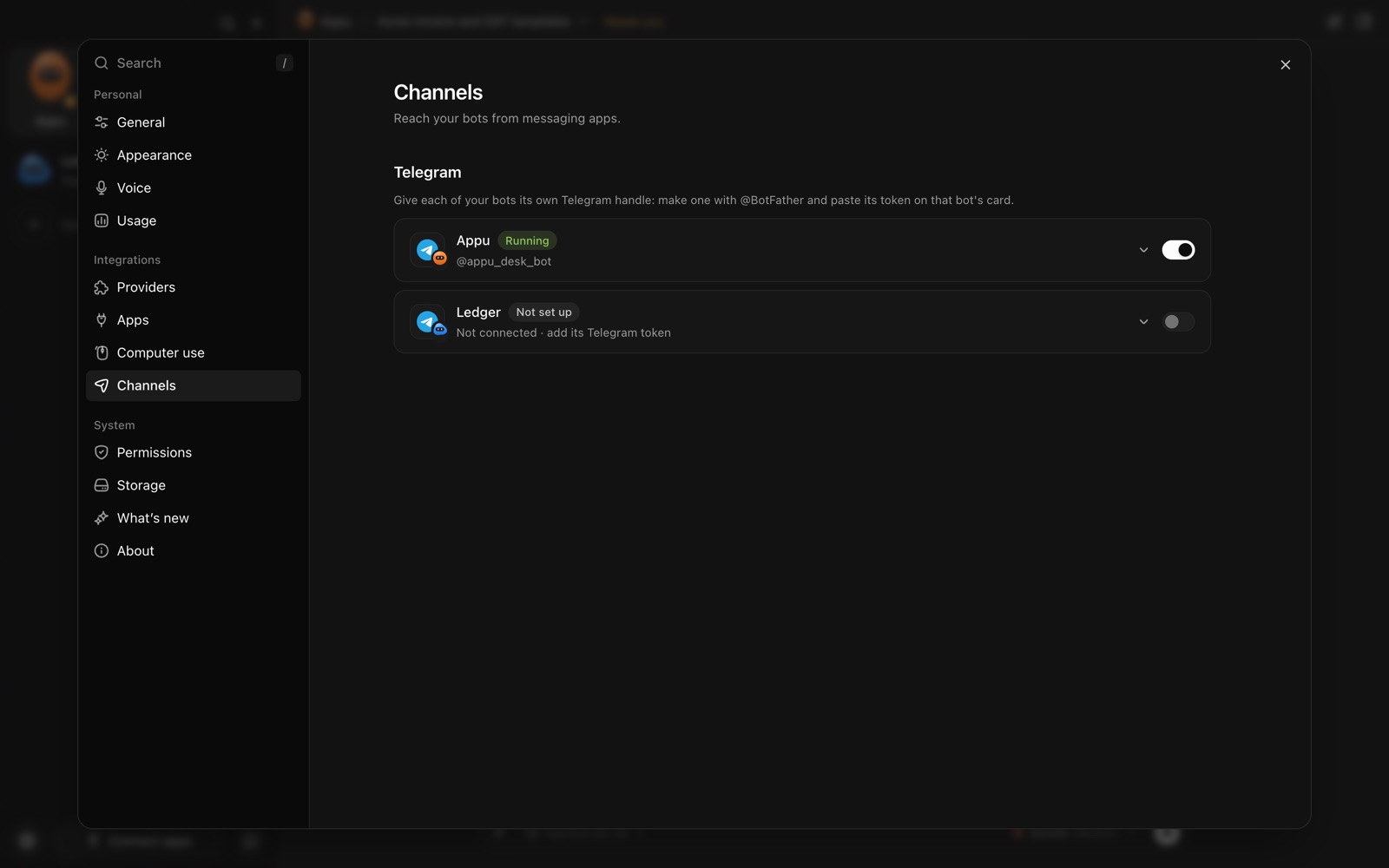
- For Telegram: in Telegram, send /newbot to @BotFather and copy the token it gives you. In AppuBot, open Settings › Telegram, paste the token on your bot’s card and press Save. The card then shows a six-digit code: send /pair and that code to your new Telegram bot.
- For the phone app: sign in to AppuBot on the PC (Settings › Account) and on the phone, then open Settings › Devices, press Pair a phone and scan the code with the phone.
The steps are the same on a Mac or a Linux computer. You only need one of the last two.
