What can a bot do in Google Docs?
Documents are where thinking gets written down: meeting notes, briefs, proposals, policies. A bot with access to Google Docs can write the first version and handle the upkeep.
- Draft from notes. Turn rough bullets or a voice note into a clean brief, proposal or letter in a new doc.
- Summarise. Boil a long document down to a page, or to five bullets for someone senior.
- Edit. Tighten wording, fix tone or rewrite a section to a length you give.
- Fill templates. Copy a template and fill in the client name, dates and figures.
- Pull action items. Read meeting notes and list who agreed to do what.
- Check consistency. Compare two versions of a document and say what changed.
What can you ask a bot to do in Google Docs?
These are the kinds of requests that work well. Type them in the app, or send them from your phone on Telegram.
- "Create a one-page project brief from these notes and title it Q4 Launch."
- "Summarise the strategy doc in five bullets."
- "Copy the proposal template and fill it in for Harbor & Co."
- "List the action items in last Tuesday's meeting notes with owners."
- "Rewrite the intro of the onboarding guide so it is shorter and friendlier."
How do you connect Google Docs to AppuBot?
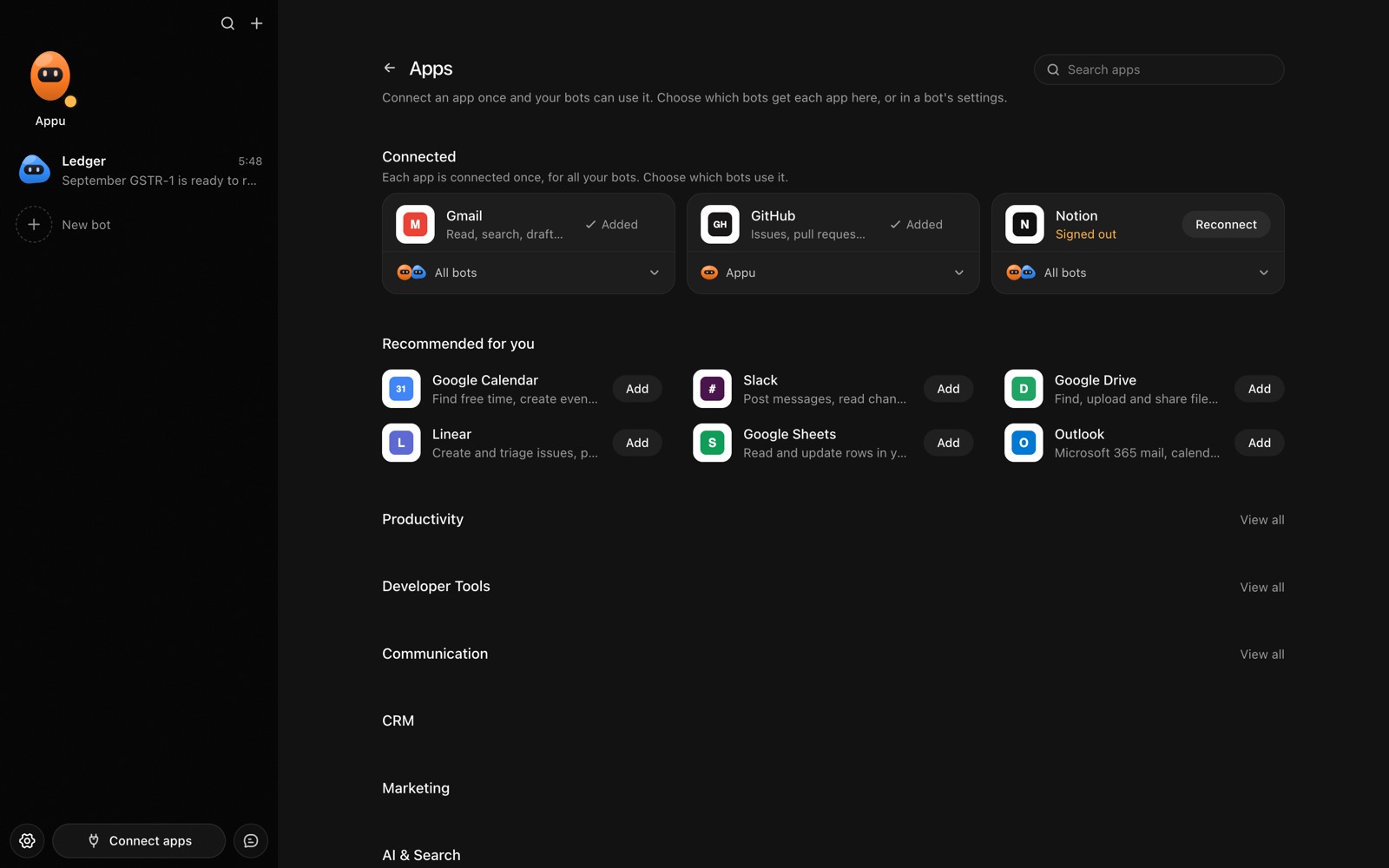
- Open AppuBot on your computer.
- Click Connect apps in the sidebar to open the Apps page.
- Sign in once in your browser. This links AppuBot to your own account for connected apps, and you only do it the first time.
- Find Google Docs on the page and connect it. Your browser opens Google Docs's own sign-in and consent screen, and you approve it there.
- Switch Google Docs on for the bots that may use it. Each bot has its own switch, so a bot you did not choose never touches it.
The same Apps page lists about 1,700 other apps. Connecting one app once makes it available to every bot you allow.
Will it ask before it changes things in Google Docs?
Creating a document or editing an existing one changes your account, and an edit may land in a doc others also read, so on "Approve for me" the bot says what it will write or change and waits. Reading and summarising go ahead.
This follows the bot's permission choice. On "Approve for me" the bot asks before it acts in your account, and it waits as long as you take. Reads and searches go ahead without a question. On "Full access" it acts without asking, so keep that for bots you trust with the app. More in Approvals.