
Skip to content
+Google Sheets

Google Sheets AI agent: let a bot work your spreadsheets

Read, fill, clean and summarise your sheets, and ask before editing.

By Sarthak Gupta · Updated

The short answer

An AppuBot bot connected to Google Sheets can read your sheets, add and update rows, clean up messy columns and explain what the numbers show. With "Approve for me" it asks before it writes to a sheet. Reads do not need approval, and you choose which bots get access.

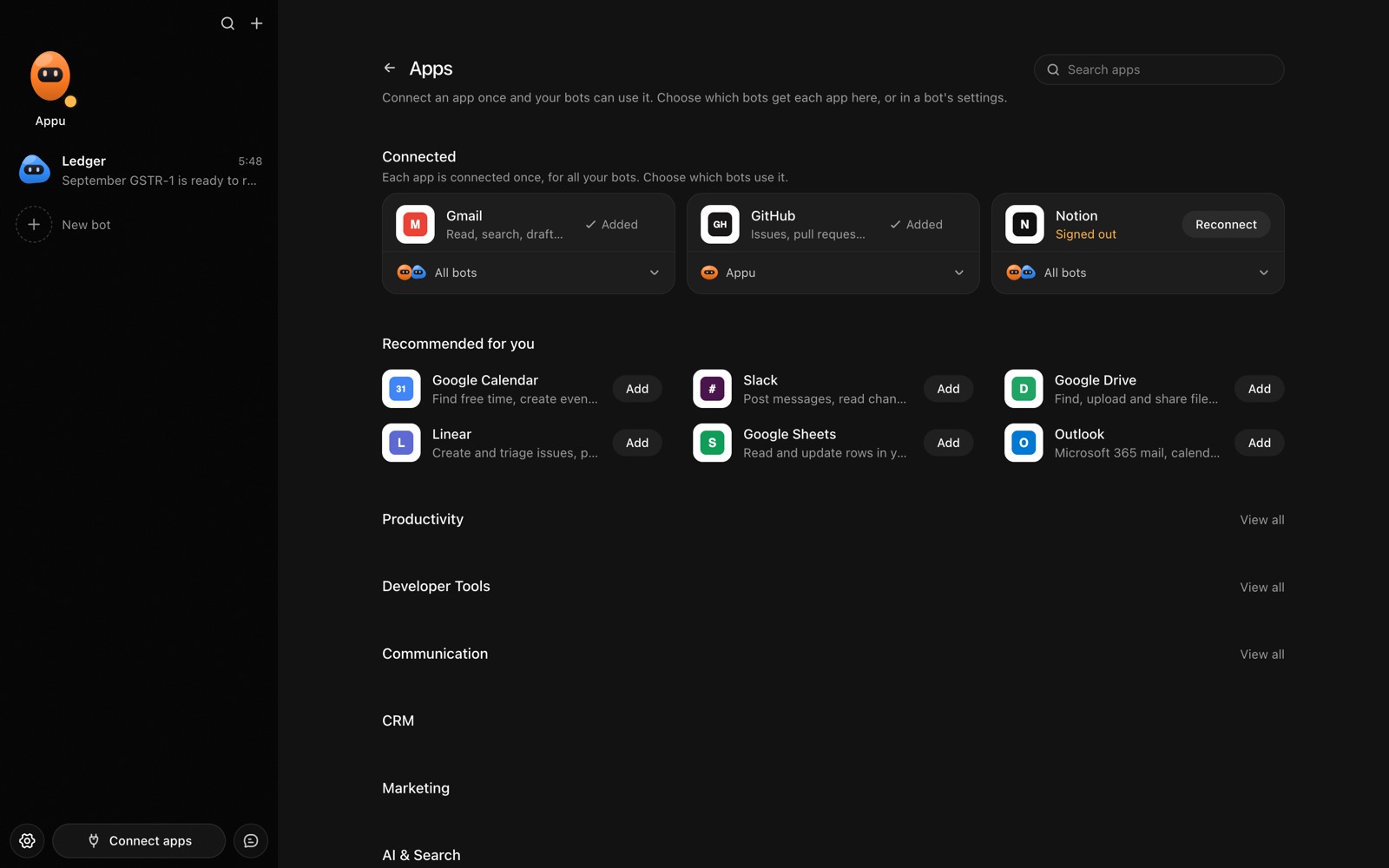
The Apps page in AppuBot with Gmail, GitHub and Notion connected and more apps to add
Connect an app once, then choose which bots may use it.

What can a bot do in Google Sheets?

Spreadsheets are where small jobs pile up: copy this, tidy that, total these. A bot with access to Google Sheets can do that kind of work in the sheets you already keep.

  • Add rows. Append a new expense, lead or log entry from a message, a photo of a receipt or a file you drop in.
  • Update cells. Change a status column, mark invoices as paid or fill in a missing field across many rows.
  • Clean data. Fix inconsistent dates, split names into two columns and remove duplicates, with a note of what changed.
  • Answer questions. Work out which month was highest, who has not paid, or what the average is for a segment.
  • Build a summary. Put totals and a short written read-out on a new tab, or show a chart as a visual reply in the chat.
  • Compare two sheets. Find rows in one list that are missing from another.

What can you ask a bot to do in Google Sheets?

These are the kinds of requests that work well. Type them in the app, or send them from your phone on Telegram.

  • "Add a row to the Expenses sheet: 42.50, lunch with client, today."
  • "Which customers in the Invoices tab are more than 30 days overdue?"
  • "Clean up the phone number column so they all use the same format."
  • "Sum spending by category for September and put it on a new tab."
  • "Compare the signup list with the attendee list and show who has not signed in."

How do you connect Google Sheets to AppuBot?

  1. Open AppuBot on your computer.
  2. Click Connect apps in the sidebar to open the Apps page.
  3. Sign in once in your browser. This links AppuBot to your own account for connected apps, and you only do it the first time.
  4. Find Google Sheets on the page and connect it. Your browser opens Google Sheets's own sign-in and consent screen, and you approve it there.
  5. Switch Google Sheets on for the bots that may use it. Each bot has its own switch, so a bot you did not choose never touches it.

The same Apps page lists about 1,700 other apps. Connecting one app once makes it available to every bot you allow.

Will it ask before it changes things in Google Sheets?

Writing to a sheet, adding a tab or changing existing values counts as acting in your account, so on "Approve for me" the bot tells you what it plans to change first. Reading ranges and answering questions about the data goes straight through.

This follows the bot's permission choice. On "Approve for me" the bot asks before it acts in your account, and it waits as long as you take. Reads and searches go ahead without a question. On "Full access" it acts without asking, so keep that for bots you trust with the app. More in Approvals.


What should you know before relying on a bot in Google Sheets?

A bot works through your own Google Sheets account, so it can do what that account can do and nothing more. If a task fails, it tells you why in the chat instead of guessing.

Be specific about which project, folder, list or account you mean when you have several, and say once what the bot should never touch. You can save that in its memory so it applies to every chat. AppuBot is free during early access and needs no AppuBot account, and you keep using the AI plan you already have.

Which routines suit Google Sheets?

Sheets are often the place where recurring numbers live, so a routine fits well.

  • Monday numbers. Read the weekly tab and send you the three figures that moved most.
  • Month-end tidy. On the first of the month, check for blank or duplicate rows and report them.
  • Overdue list. Weekdays, list invoices past their due date and who they belong to.

Google Sheets with computer use and Telegram

The connection reads and writes cells directly. When a job lives in the screen instead, such as a chart style, a pivot table setup or a file open in Excel or Numbers, computer use lets the bot work in that app's window. Use the connection for data and the screen for the rest.

On Telegram you can photograph a receipt, send it to your bot and say "log this in the Expenses sheet". The bot reads the photo, adds the row and replies with what it wrote.

Is it private to use Google Sheets with a bot?

The bot uses your own Google account and can only reach the spreadsheets that account can open. Data it reads is sent to its AI provider to be worked on, as when you paste a table into that AI yourself. Turn the app off for a bot if a sheet should stay out of its reach.

Turn the app off for a bot at any time from its switch on the Apps page, and the bot loses access at once. You can also disconnect the app completely. See connected apps for how connections work.

Questions

Can a bot edit a sheet shared with me by someone else?

It can do whatever your own account is allowed to do in that sheet. If you only have view access, it can read but not edit.

Will it overwrite my formulas?

Ask it to leave formulas alone and to work in new columns or a new tab. On "Approve for me" you also see the planned change before it is made.

Can it handle large sheets?

It works best on the range you point it at. For a big sheet, name the tab and the columns so it does not read everything.

Does it work with Excel files?

Not through this connection, which is for Google Sheets. For a file open in Excel, a bot can use [computer use](/features/computer-use) on your own computer.

Meet your first bot

An AI teammate that works on your Mac, and tells you on Telegram