What can a bot do in Google Drive?
Drive tends to hold years of files named things like "final_v3". A bot can find the right one, tell you what is in it and keep new files where they belong.
- Find the file. Search by name, owner, type or what the document is about, then give you the link.
- Read and answer. Open a document or PDF and pull out the clause, figure or date you asked about.
- Upload files. Save a file you drop in the chat, or one it just made, into the folder you name.
- Organise. Sort a messy folder into sub-folders by project, client or month, once you agree the scheme.
- Tidy names. Rename files to a consistent pattern, such as date first.
- Report on a folder. List what is in a folder, who owns it and what has not changed in a year.
What can you ask a bot to do in Google Drive?
These are the kinds of requests that work well. Type them in the app, or send them from your phone on Telegram.
- "Find the signed contract with Northwind and tell me the notice period."
- "Put this PDF in the Clients/Acme folder."
- "List files in Shared/Marketing that nobody has opened this year."
- "Rename everything in Receipts to start with the date."
- "Which presentations did I edit last week?"
How do you connect Google Drive to AppuBot?
- Open AppuBot on your computer.
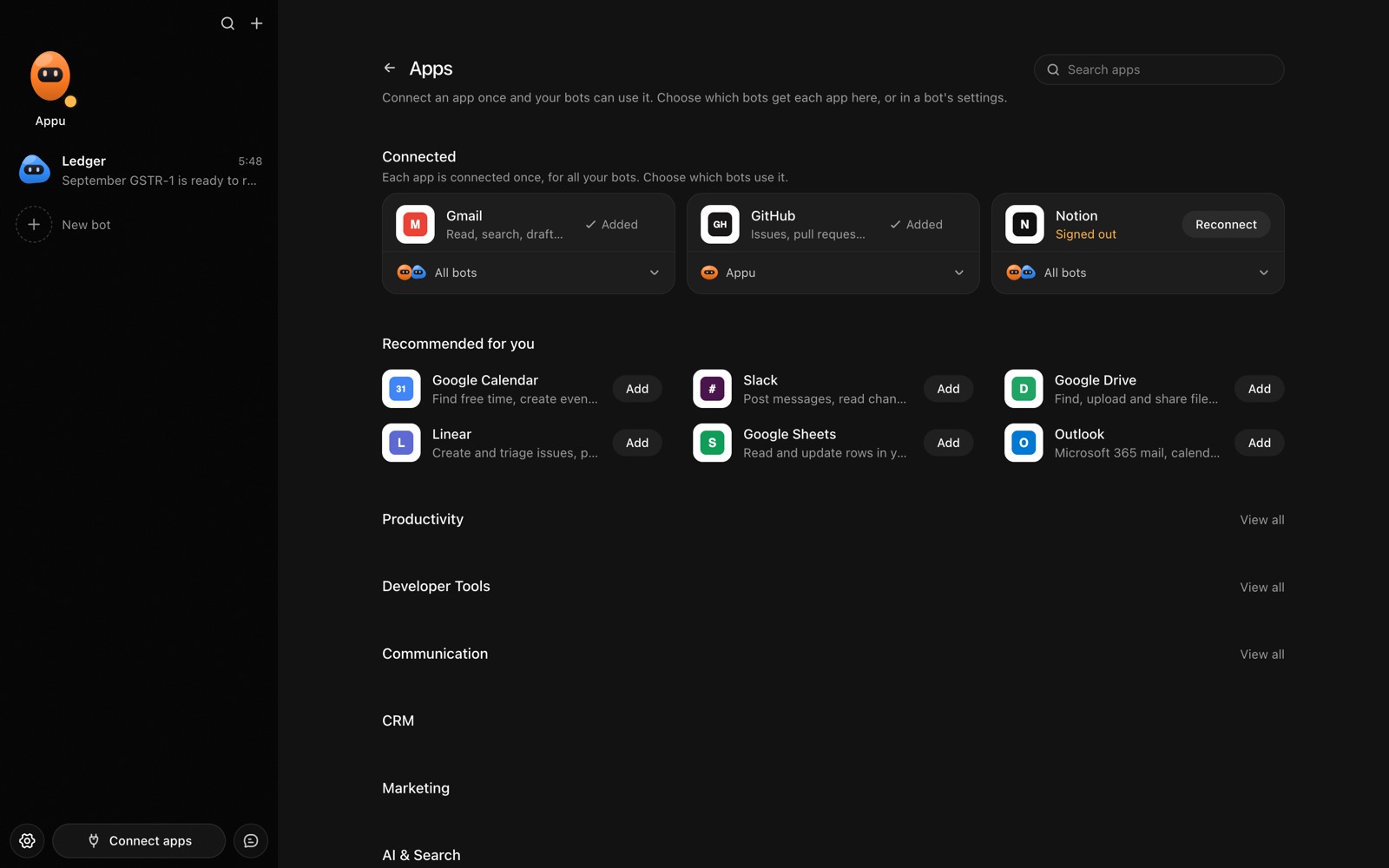
- Click Connect apps in the sidebar to open the Apps page.
- Sign in once in your browser. This links AppuBot to your own account for connected apps, and you only do it the first time.
- Find Google Drive on the page and connect it. Your browser opens Google Drive's own sign-in and consent screen, and you approve it there.
- Switch Google Drive on for the bots that may use it. Each bot has its own switch, so a bot you did not choose never touches it.
The same Apps page lists about 1,700 other apps. Connecting one app once makes it available to every bot you allow.
Will it ask before it changes things in Google Drive?
Uploading, moving, renaming, deleting and above all changing who can see a file affect your account and other people, so on "Approve for me" the bot asks first. Searching and opening files to read them goes ahead.
This follows the bot's permission choice. On "Approve for me" the bot asks before it acts in your account, and it waits as long as you take. Reads and searches go ahead without a question. On "Full access" it acts without asking, so keep that for bots you trust with the app. More in Approvals.