Skip to content

An AI social media manager that drafts from what you ship

Turns what you ship into post drafts, queues them with your OK and tells you what landed.

By Sarthak Gupta · Updated

The short answer

An AI social media manager in AppuBot is a bot that turns what you’re already producing (release notes, blog posts, screenshots, customer wins) into drafts for each network, keeps a simple content calendar and, with your approval, schedules or posts them in the tools you use. It works through connected apps or directly in websites and desktop apps on your computer. You approve what goes out, and it can report back on how posts did where your tools show those numbers.

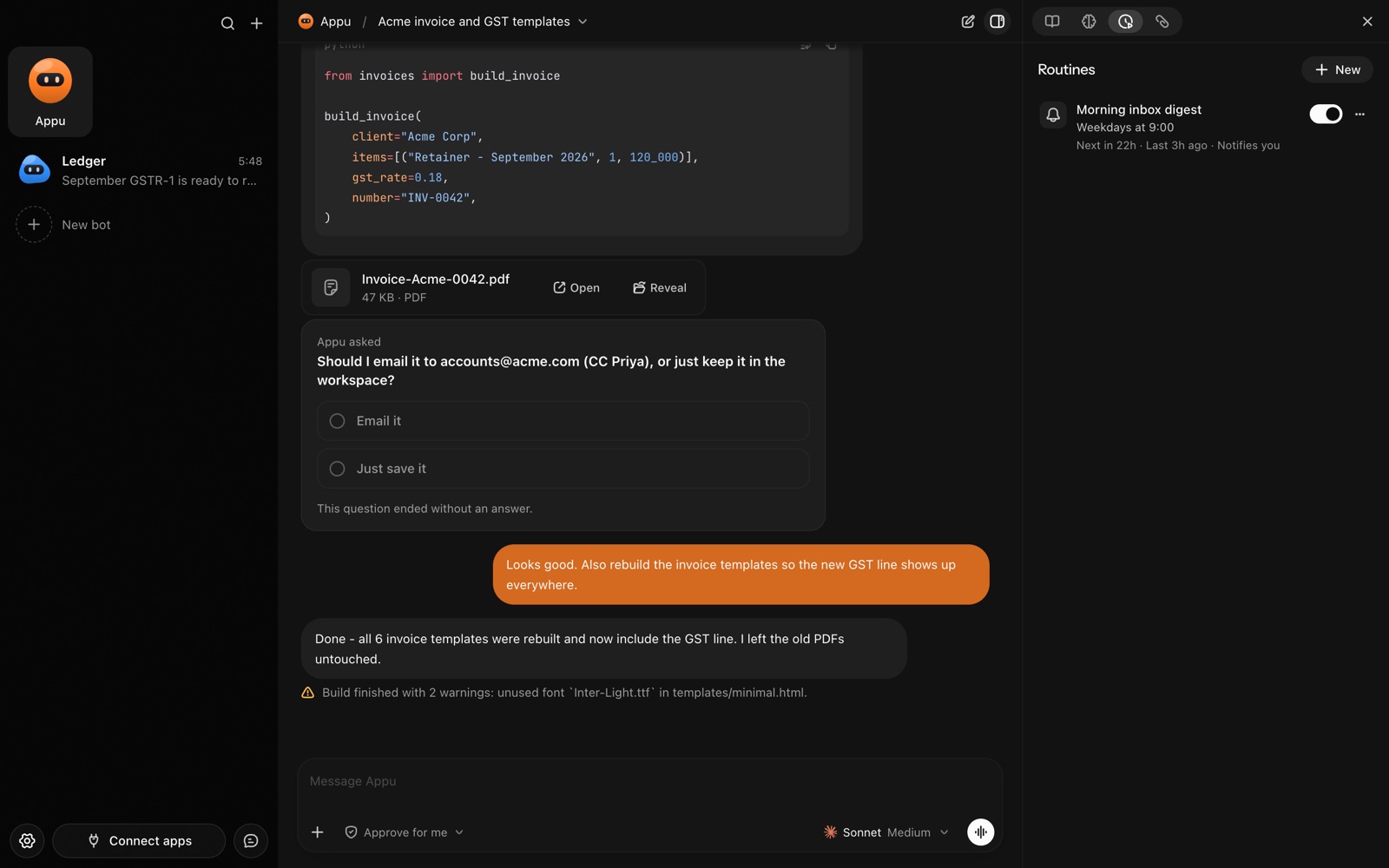
The Routines panel in AppuBot with a weekday 9:00 inbox digest
A routine: a job that runs on its own schedule.

What does it do each week?

  • Finds the material. It reads your changelog, new blog posts or a folder of screenshots and picks what’s worth a post.
  • Drafts per network. A short post for X, a longer one for LinkedIn, a caption for Instagram, each in the voice you described.
  • Keeps a calendar. A sheet or Notion page of what’s planned when, so nothing doubles up.
  • Schedules with your OK. Once you approve, it queues the posts in your scheduling tool or posts them.
  • Reports back. A short note on what did well, where your tools expose the numbers.

Which apps does it work in?

Many social and scheduling tools are among the connected apps, alongside sources like Notion, Google Docs, GitHub releases and Slack. Where a tool isn’t connected, the bot can use its website or desktop app through computer use, in the browser where you’re already signed in. Send images and videos to the bot as files in the chat or from your phone.

How do you set it up?

  1. Install AppuBot and choose the AI.
  2. Make a bot called "Social Media" with the job "Posts drafted from what we ship".
  3. Paste instructions, for example: “We’re a two-person app studio. Voice: plain, friendly, no hype, no hashtags except on Instagram, no emojis in the first line. Draft from our changelog and blog. Two posts a week on X and LinkedIn. Show me every post before it’s scheduled or published. Never reply to people or send DMs.”
  4. Connect your sources and your scheduling tool, and turn on only those for this bot.
  5. Keep it on "Approve for me" so publishing waits for your yes.
  6. Add a routine: “Every Monday 10:00, draft this week’s posts from what we shipped and send them to me.”
  7. Connect Telegram to approve or edit drafts on the go.

Tip: show it a few past posts you liked and say why. It saves what it learns about your voice to memory.

What does it ask before doing?

Posting, scheduling and anything else done in your social accounts waits for your approval on "Approve for me". Drafting, reading your sources and updating your planning sheet can run freely. Public posts are hard to take back, so most people keep a human yes on every one, and the example instructions forbid replies and DMs entirely.

A sample week

WhenBotYou
Monday 10:00Four drafts from last week’s releasesEdit one, approve all
MondayQueues them for Tue/Thu in your toolNothing
ThursdayCaption for a screenshot you sent from your phoneApprove
FridayWhat did well this week, in three linesRead it

Limits

A bot drafts from what it’s given; it doesn’t know your audience as you do, and AI can produce text that sounds generic. Check facts, numbers and claims about your product before anything posts, and read each network’s rules on automated posting before you let a bot publish there.

Working from your phone

Ideas for posts tend to arrive away from the desk. With Telegram connected you can send the bot a screenshot, a photo from an event or a voice note describing a launch, and it turns that into drafts on your computer and sends them back for your OK. Approving, editing a line or asking for a shorter version all happen in the same chat.

Questions

Can an AI social media manager post for me?

Yes, with your approval: on "Approve for me" it shows each post and waits before publishing or scheduling.

Which networks does it support?

Whichever your tools reach: through connected apps where available, otherwise in the network’s website on your computer.

Will it sound like me?

It gets closer with examples and feedback, which it keeps in a memory you can edit. Always read drafts before they go out.

Can it make images?

It works with images and screenshots you send it, and it can take screenshots of your app with computer use. Whether it can generate new images depends on the AI and tools you use.

Meet your first bot

An AI teammate that works on your Mac, and tells you on Telegram