
Skip to content
+Slack

Slack AI agent: let a bot read and post in your workspace

Catch up on channels, search history and post, with your OK first.

By Sarthak Gupta · Updated

The short answer

An AppuBot bot connected to Slack can catch you up on channels, search past messages and draft replies. With "Approve for me" it asks before it posts or messages anyone. Reading and searching do not need approval, and you pick which bots may use the connection.

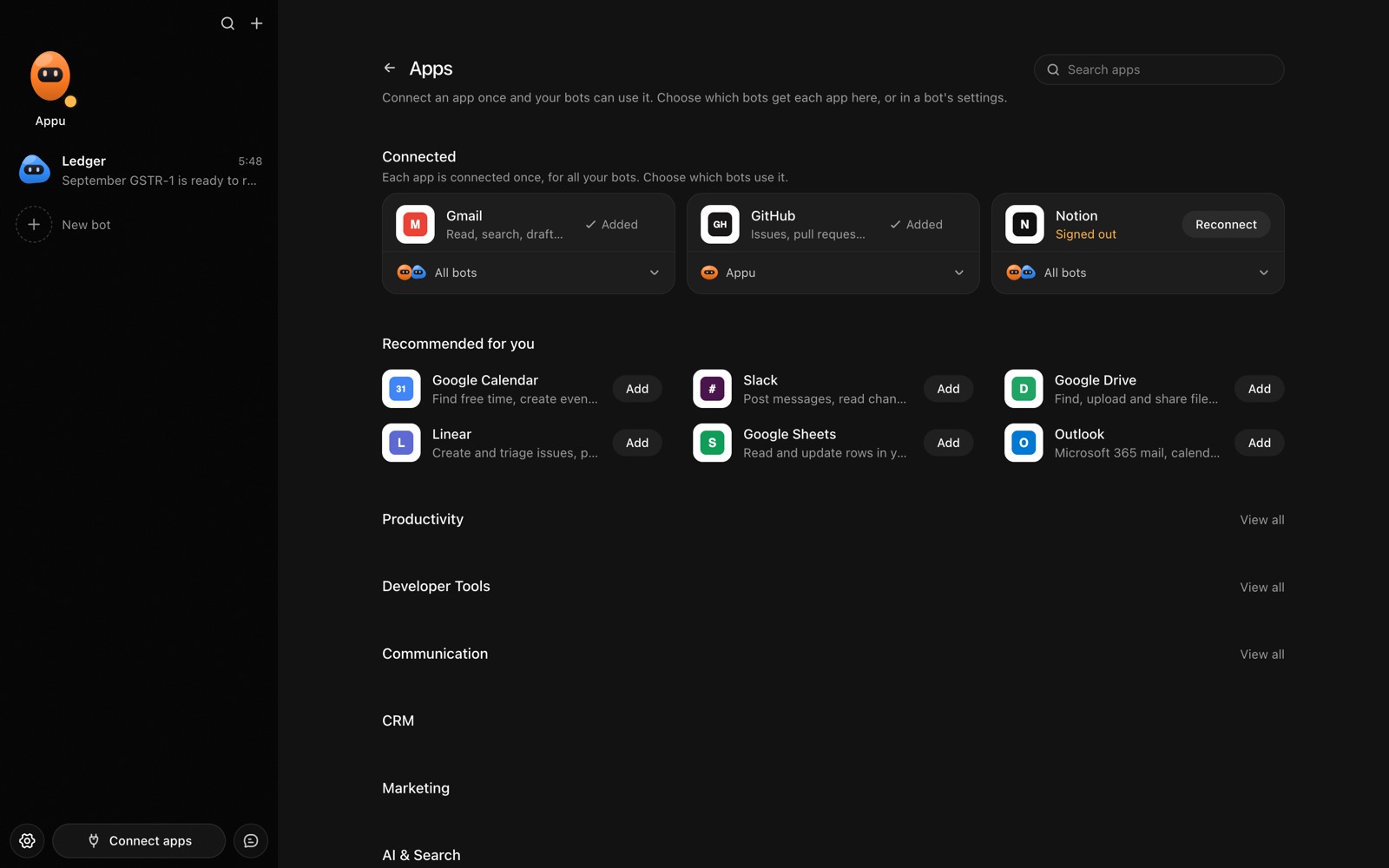
The Apps page in AppuBot with Gmail, GitHub and Notion connected and more apps to add
Connect an app once, then choose which bots may use it.

What can a bot do in Slack?

Slack is where decisions get made and then buried. A bot can read the noise for you, and write the short update when you ask.

  • Catch you up. Summarise a busy channel or thread after you have been away.
  • Search history. Find who said what about a launch date, a customer or an outage.
  • Draft messages. Write a status update or a polite nudge for you to review.
  • Post updates. Send a message to a channel you name, once you have approved the text.
  • Collect action items. Pull commitments out of a thread and list the owners.
  • Watch for mentions. Tell you what you were mentioned in and what needs an answer.

What can you ask a bot to do in Slack?

These are the kinds of requests that work well. Type them in the app, or send them from your phone on Telegram.

  • "Catch me up on #product since Monday."
  • "Who decided to move the launch to the 14th?"
  • "Draft a short update for #team about today's release, and show me before posting."
  • "List everything I was mentioned in today that I have not answered."
  • "Find the thread where we discussed the Acme outage."

How do you connect Slack to AppuBot?

  1. Open AppuBot on your computer.
  2. Click Connect apps in the sidebar to open the Apps page.
  3. Sign in once in your browser. This links AppuBot to your own account for connected apps, and you only do it the first time.
  4. Find Slack on the page and connect it. Your browser opens Slack's own sign-in and consent screen, and you approve it there.
  5. Switch Slack on for the bots that may use it. Each bot has its own switch, so a bot you did not choose never touches it.

The same Apps page lists about 1,700 other apps. Connecting one app once makes it available to every bot you allow.

Will it ask before it changes things in Slack?

Posting is visible to everyone in a channel and cannot be quietly undone, so on "Approve for me" the bot shows you the exact message and the channel first. Reading and searching go ahead without a question.

This follows the bot's permission choice. On "Approve for me" the bot asks before it acts in your account, and it waits as long as you take. Reads and searches go ahead without a question. On "Full access" it acts without asking, so keep that for bots you trust with the app. More in Approvals.


What should you know before relying on a bot in Slack?

A bot works through your own Slack account, so it can do what that account can do and nothing more. If a task fails, it tells you why in the chat instead of guessing.

Be specific about which project, folder, list or account you mean when you have several, and say once what the bot should never touch. You can save that in its memory so it applies to every chat. AppuBot is free during early access and needs no AppuBot account, and you keep using the AI plan you already have.

Which routines suit Slack?

Slack's volume makes it a natural place for routines.

  • Morning catch-up. Weekdays, summarise the channels you follow and send the highlights to Telegram.
  • End-of-day digest. At 5 pm, list unanswered mentions.
  • Weekly recap. Fridays, draft a recap of the team's decisions for your review.

Slack with computer use and Telegram

The connection is for messages and channels. If something needs the Slack app itself, such as a call or a setting, computer use lets the bot click through the app on your computer.

On Telegram you can ask "anything urgent in Slack?" while away from the desk, and have the bot reply with the two threads that need you, plus a draft answer.

Is it private to use Slack with a bot?

It connects to your own Slack account and sees the channels and messages your account can see. What it reads goes to its AI provider so it can summarise, much like pasting messages into that AI. Check your workplace's rules on sharing chat with an AI before turning it on.

Turn the app off for a bot at any time from its switch on the Apps page, and the bot loses access at once. You can also disconnect the app completely. See connected apps for how connections work.

Questions

Does my workplace need to approve this?

Some Slack workspaces limit which apps can connect. If sign-in is blocked, ask your workspace admin.

Can the bot read private channels and DMs?

It can read what your own account can read. Turn Slack off for a bot that should not.

Will it post as me?

Posts go out through your connection, so treat them as yours and approve the text before they go.

Can it join a conversation on its own?

It acts when you ask or when a routine tells it to. It does not watch channels and reply by itself.

Meet your first bot

An AI teammate that works on your Mac, and tells you on Telegram