
Skip to content
+Figma

Figma AI agent: let a bot read and organise your design files

Find files, read comments, collect feedback and fetch frames.

By Sarthak Gupta · Updated

The short answer

An AppuBot bot connected to Figma can find files and projects, read comments, summarise feedback and fetch frames for use elsewhere. With "Approve for me" it asks before it posts or changes anything. For editing designs on the canvas, it uses computer use in the Figma app.

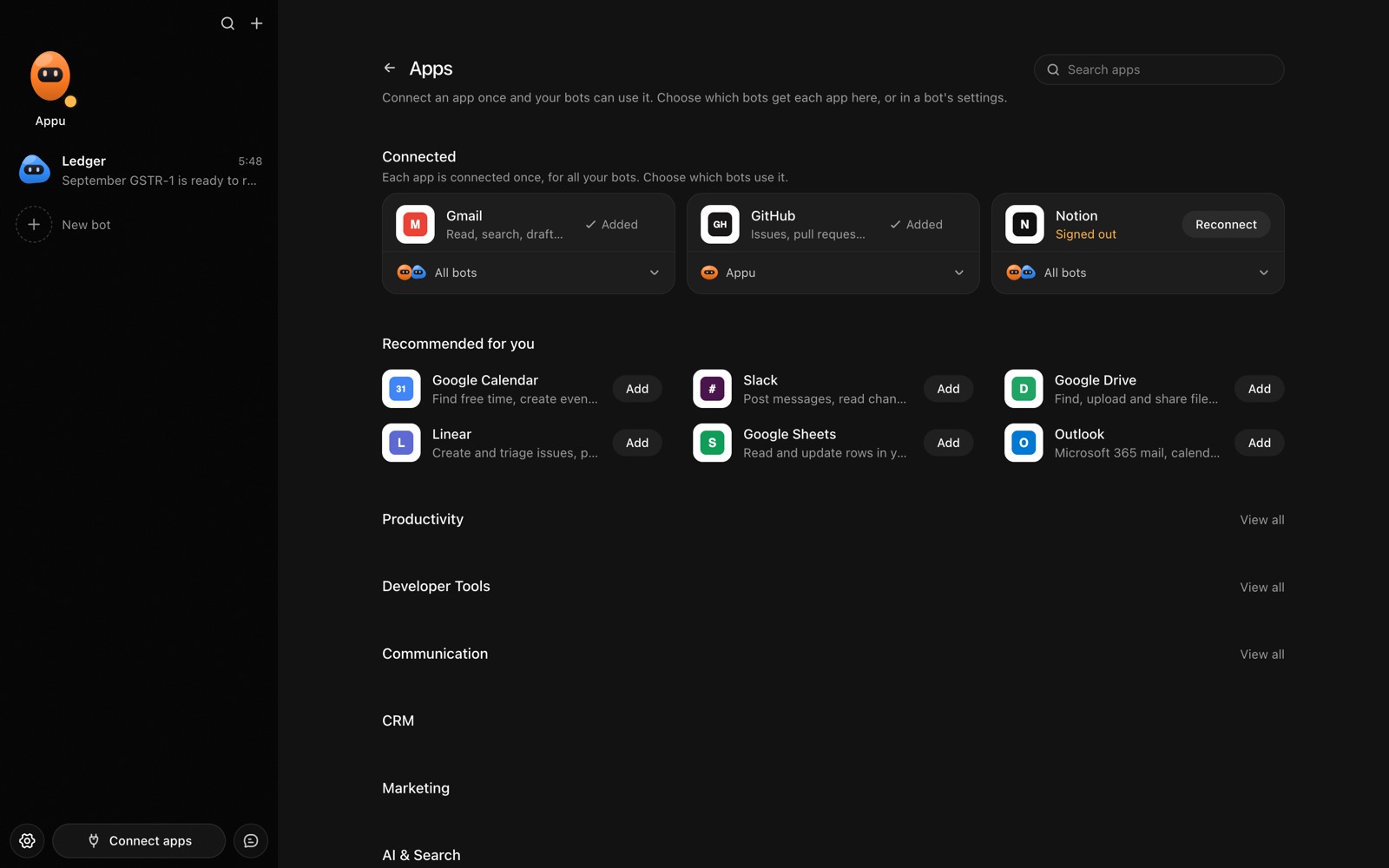
The Apps page in AppuBot with Gmail, GitHub and Notion connected and more apps to add
Connect an app once, then choose which bots may use it.

What can a bot do in Figma?

Design work produces a trail of files and feedback that is hard to keep track of. A bot can find what you need and turn comments into a to-do list.

  • Find files. Locate the file or project for a client or a feature.
  • Read comments. List open comments on a file and who made them.
  • Summarise feedback. Group comments into themes and a short action list.
  • Reply to comments. Draft replies for you to approve.
  • Fetch frames. Get a frame or an image from a file so it can go into a document or a post.
  • Hand off. Collect the links and notes for a developer in one message.

What can you ask a bot to do in Figma?

These are the kinds of requests that work well. Type them in the app, or send them from your phone on Telegram.

  • "Find the Checkout redesign file."
  • "List open comments on the onboarding screens."
  • "Turn the feedback on this file into a checklist."
  • "Get the hero frame from the landing page file and put it in the Launch doc."
  • "Draft a reply to the comment about the button colour."

How do you connect Figma to AppuBot?

  1. Open AppuBot on your computer.
  2. Click Connect apps in the sidebar to open the Apps page.
  3. Sign in once in your browser. This links AppuBot to your own account for connected apps, and you only do it the first time.
  4. Find Figma on the page and connect it. Your browser opens Figma's own sign-in and consent screen, and you approve it there.
  5. Switch Figma on for the bots that may use it. Each bot has its own switch, so a bot you did not choose never touches it.

The same Apps page lists about 1,700 other apps. Connecting one app once makes it available to every bot you allow.

Will it ask before it changes things in Figma?

Posting comments and making changes are visible to your team, so on "Approve for me" the bot shows what it will post. Finding files and reading comments goes ahead. Canvas edits by computer use are asked about as the bot goes.

This follows the bot's permission choice. On "Approve for me" the bot asks before it acts in your account, and it waits as long as you take. Reads and searches go ahead without a question. On "Full access" it acts without asking, so keep that for bots you trust with the app. More in Approvals.


What should you know before relying on a bot in Figma?

A bot works through your own Figma account, so it can do what that account can do and nothing more. If a task fails, it tells you why in the chat instead of guessing.

Be specific about which project, folder, list or account you mean when you have several, and say once what the bot should never touch. You can save that in its memory so it applies to every chat. AppuBot is free during early access and needs no AppuBot account, and you keep using the AI plan you already have.

Which routines suit Figma?

Feedback arrives all week, so a routine can gather it.

  • Friday feedback digest. List new comments across your active files.
  • Handoff pack. Before a sprint, collect links and notes for each ready file.
  • Open comments check. Weekly, list comments with no reply.

Figma with computer use and Telegram

The connection covers files, comments and exports. Designing on the canvas is visual work, so computer use is what lets a bot actually open the Figma app and click, type and move things, while you watch. That is slower than data work, but it opens up what files and comments cannot.

On Telegram you can ask "any new comments on the pricing page file?" and receive a short list, then answer one by voice note.

Is it private to use Figma with a bot?

It uses your own Figma account and the files it can open. Comments and exported frames go to its AI provider if the bot reads them, like sharing them with that AI yourself. Turn Figma off for any bot at any time.

Turn the app off for a bot at any time from its switch on the Apps page, and the bot loses access at once. You can also disconnect the app completely. See connected apps for how connections work.

Questions

Can a bot design for me?

It can try with computer use in the Figma app, but treat the result as a rough draft. The strength of the connection is files, comments and handoff.

Can it read the contents of a design?

It can look at exported frames and the text and comments it can get. Quality depends on the AI the bot uses.

Does it work with FigJam?

Name the file in your request and ask what it can do with it.

Can it share designs with developers?

It can collect links and notes and post them in [Slack](/apps/slack) or [Notion](/apps/notion), asking first.

Meet your first bot

An AI teammate that works on your Mac, and tells you on Telegram