
Skip to content
+Google Calendar

Google Calendar AI assistant: let a bot manage your schedule

Read your day, find free time and set up events, with your OK first.

By Sarthak Gupta · Updated

The short answer

An AppuBot bot connected to Google Calendar can tell you what your day looks like, find gaps for a meeting, create events and reschedule them. With "Approve for me" it asks before creating, moving or deleting anything. Looking at your schedule does not need approval.

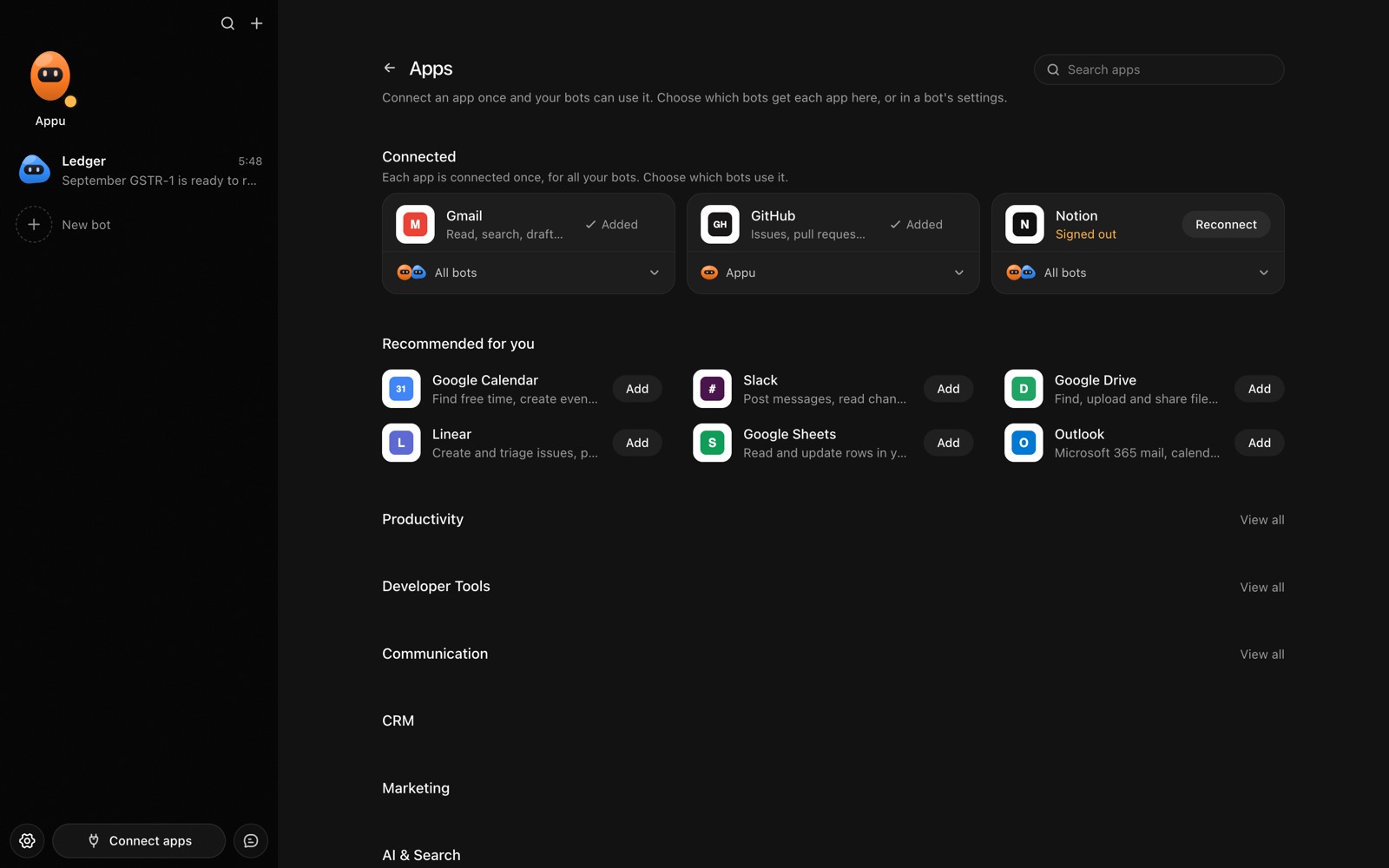
The Apps page in AppuBot with Gmail, GitHub and Notion connected and more apps to add
Connect an app once, then choose which bots may use it.

What can a bot do in Google Calendar?

Your calendar is a record of promises, and keeping it right is a stream of small decisions. A bot with access to Google Calendar can do the looking up and the proposing while you say yes or no.

  • Brief you on the day. List today's meetings with times, attendees and anything that overlaps.
  • Find free time. Look across a week for a stretch long enough for a meeting, avoiding the hours you protect.
  • Create events. Turn "lunch with Sam on Friday at one" into a proper event with the right invitees.
  • Move and cancel. Shift a meeting to another slot and tell you who it affects.
  • Spot clashes. Point out double bookings and back-to-back days with no breaks.
  • Prepare for meetings. Collect the description, attendees and related emails so you walk in ready.

What can you ask a bot to do in Google Calendar?

These are the kinds of requests that work well. Type them in the app, or send them from your phone on Telegram.

  • "What does my Thursday look like?"
  • "Find 45 minutes next week when both mornings are free and propose two slots."
  • "Create an event on Friday at 1 pm called Lunch with Sam."
  • "Do I have any double bookings this month?"
  • "Move my 3 pm to the same time tomorrow and tell me who is invited."

How do you connect Google Calendar to AppuBot?

  1. Open AppuBot on your computer.
  2. Click Connect apps in the sidebar to open the Apps page.
  3. Sign in once in your browser. This links AppuBot to your own account for connected apps, and you only do it the first time.
  4. Find Google Calendar on the page and connect it. Your browser opens Google Calendar's own sign-in and consent screen, and you approve it there.
  5. Switch Google Calendar on for the bots that may use it. Each bot has its own switch, so a bot you did not choose never touches it.

The same Apps page lists about 1,700 other apps. Connecting one app once makes it available to every bot you allow.

Will it ask before it changes things in Google Calendar?

Creating, editing, moving and deleting events changes things other people see, since invitees get notices, so on "Approve for me" the bot shows you the event first and waits. Reading your agenda and finding free slots does not need a question.

This follows the bot's permission choice. On "Approve for me" the bot asks before it acts in your account, and it waits as long as you take. Reads and searches go ahead without a question. On "Full access" it acts without asking, so keep that for bots you trust with the app. More in Approvals.


What should you know before relying on a bot in Google Calendar?

A bot works through your own Google Calendar account, so it can do what that account can do and nothing more. If a task fails, it tells you why in the chat instead of guessing.

Be specific about which project, folder, list or account you mean when you have several, and say once what the bot should never touch. You can save that in its memory so it applies to every chat. AppuBot is free during early access and needs no AppuBot account, and you keep using the AI plan you already have.

Which routines suit Google Calendar?

The calendar is something you check at the same time every day, which is what a routine is for.

  • Morning agenda. Weekdays at 7:30, send the day's meetings to your phone.
  • Sunday look-ahead. List the coming week's busy days and the gaps worth protecting.
  • Focus-time guard. Daily, check that your focus blocks are intact and say if one has been booked over.

Google Calendar with computer use and Telegram

The connection covers events, times and invitees. If a meeting tool needs a click in an app, say a video call that has to be opened or a scheduling page in a browser, computer use lets the bot do that part in the app's own window.

With Telegram you can message your bot "move my 3 pm to tomorrow" while you are out. It replies with the change it plans, and you tap to confirm.

Is it private to use Google Calendar with a bot?

It uses your own Google account and sees the calendars you can see. Event titles and details it reads go to its AI provider so it can answer, like using that AI yourself. You can switch the calendar off for any bot whenever you like.

Turn the app off for a bot at any time from its switch on the Apps page, and the bot loses access at once. You can also disconnect the app completely. See connected apps for how connections work.

Questions

Can a bot invite people to events?

It can be set up to, and with "Approve for me" you approve the invite before anyone is notified.

Can it see my other calendars, such as a shared team one?

It can see the calendars your Google account can see. Name the one you mean in your request.

Does it know my time zone?

It works from your calendar's settings and the time on your computer. Say the zone when you are planning with someone elsewhere.

What about meetings booked through Calendly?

Those land in your calendar like any event. The [Calendly page](/apps/calendly) covers the booking side.

Meet your first bot

An AI teammate that works on your Mac, and tells you on Telegram