
Skip to content
+Linear

Linear AI agent: let a bot triage and update your issues

Search, write and update Linear issues, and summarise your cycle.

By Sarthak Gupta · Updated

The short answer

An AppuBot bot connected to Linear can search your issues, write new ones, update status and assignees, and summarise a cycle or project. With "Approve for me" it asks before it creates or changes an issue. Searching and reading do not need approval.

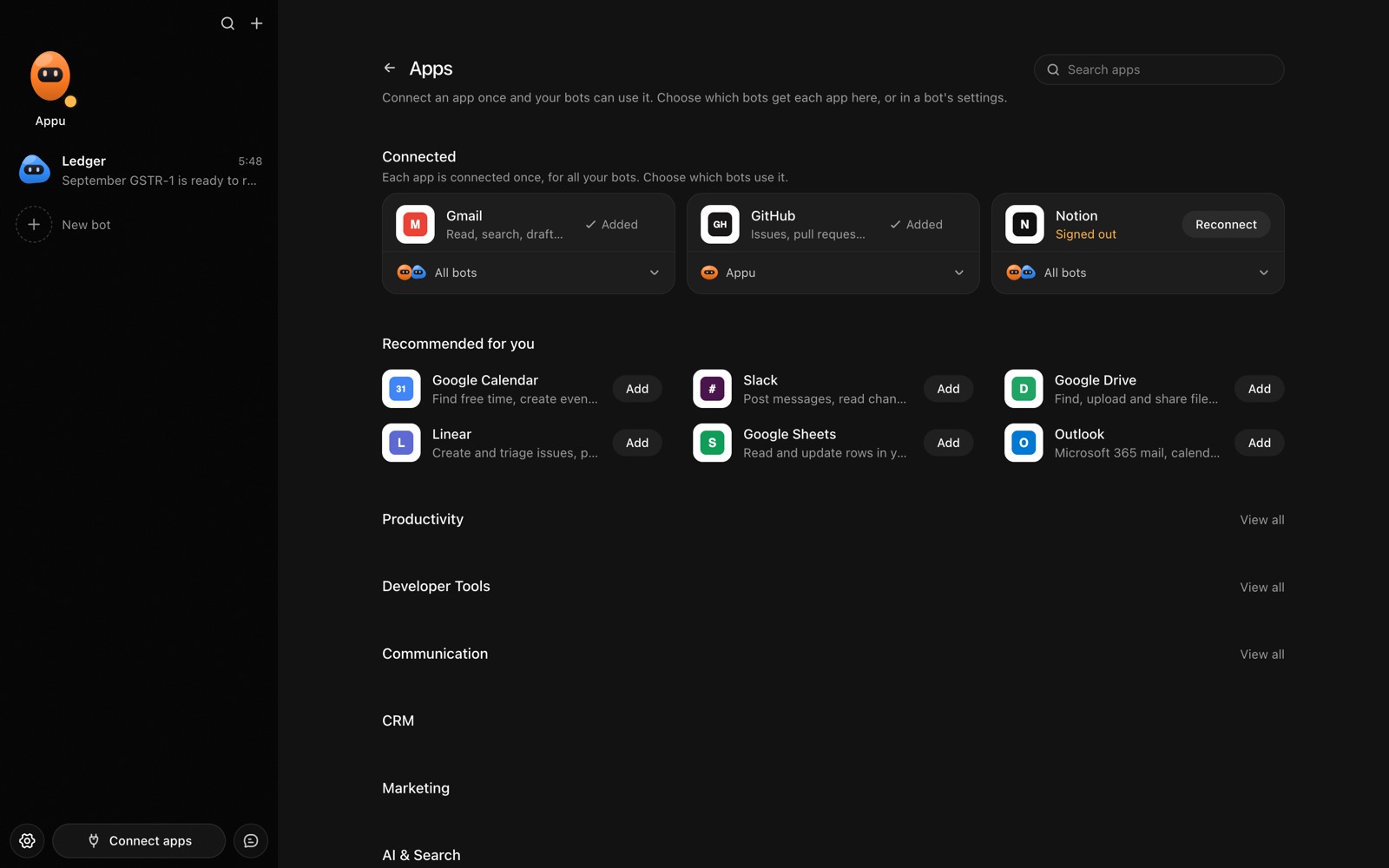
The Apps page in AppuBot with Gmail, GitHub and Notion connected and more apps to add
Connect an app once, then choose which bots may use it.

What can a bot do in Linear?

Linear is quick by design, but writing good tickets and keeping statuses honest is still manual. A bot can take the typing and the chasing.

  • Write issues. Turn a bug report, a call note or a screenshot into a clear ticket with steps and expected behaviour.
  • Triage. Suggest priority, team and labels for new issues and flag duplicates.
  • Update status. Move issues along and assign them when you tell it who owns what.
  • Summarise a cycle. Report what shipped, what slipped and what is blocked.
  • Answer questions. Find issues by topic, assignee or label and list them.
  • Draft project updates. Write the written update for a project from its recent issues.

What can you ask a bot to do in Linear?

These are the kinds of requests that work well. Type them in the app, or send them from your phone on Telegram.

  • "Create a bug in Mobile: login button does nothing on Android 14, high priority."
  • "What is still open in the current cycle?"
  • "Assign every unassigned issue labelled billing to Maya."
  • "Draft this week's project update for Checkout."
  • "Which issues have been blocked for more than a week?"

How do you connect Linear to AppuBot?

  1. Open AppuBot on your computer.
  2. Click Connect apps in the sidebar to open the Apps page.
  3. Sign in once in your browser. This links AppuBot to your own account for connected apps, and you only do it the first time.
  4. Find Linear on the page and connect it. Your browser opens Linear's own sign-in and consent screen, and you approve it there.
  5. Switch Linear on for the bots that may use it. Each bot has its own switch, so a bot you did not choose never touches it.

The same Apps page lists about 1,700 other apps. Connecting one app once makes it available to every bot you allow.

Will it ask before it changes things in Linear?

Creating or editing an issue changes what your team sees and may notify people, so on "Approve for me" the bot shows what it will file or change and waits. Searching issues goes ahead.

This follows the bot's permission choice. On "Approve for me" the bot asks before it acts in your account, and it waits as long as you take. Reads and searches go ahead without a question. On "Full access" it acts without asking, so keep that for bots you trust with the app. More in Approvals.


What should you know before relying on a bot in Linear?

A bot works through your own Linear account, so it can do what that account can do and nothing more. If a task fails, it tells you why in the chat instead of guessing.

Be specific about which project, folder, list or account you mean when you have several, and say once what the bot should never touch. You can save that in its memory so it applies to every chat. AppuBot is free during early access and needs no AppuBot account, and you keep using the AI plan you already have.

Which routines suit Linear?

Linear's rhythm of cycles and standups fits routines.

  • Standup prep. Weekday mornings, list what moved yesterday and what is blocked.
  • Cycle report. At the end of each cycle, draft a summary of finished and carried-over work.
  • Untriaged sweep. Daily, list new issues without a priority.

Linear with computer use and Telegram

The connection works with issues and projects directly. Computer use is there when a task needs the Linear app's screen or another tool open next to it, such as pasting a screenshot from a design app.

On Telegram you can send a photo of a bug on your phone and say "file this in Mobile". The bot writes the ticket and replies with the issue ID.

Is it private to use Linear with a bot?

It uses your own Linear account and sees the teams and issues you can. Issue text it reads goes to its AI provider to be worked on, like pasting it in yourself. Turn Linear off for a bot that does not need it.

Turn the app off for a bot at any time from its switch on the Apps page, and the bot loses access at once. You can also disconnect the app completely. See connected apps for how connections work.

Questions

Can a bot close issues?

It can update status, which includes done and cancelled. On "Approve for me" you approve each change.

Does it work with Linear and GitHub together?

Yes, connect both. Linear's own GitHub link keeps working, and a bot can read from both. See the [GitHub page](/apps/github).

Can it estimate work?

It can suggest an estimate from the description. Treat that as a starting point for your team.

Can it only see my team?

It sees what your account sees. Name the team in your request to keep it focused.

Meet your first bot

An AI teammate that works on your Mac, and tells you on Telegram