Skip to content

How to connect Gmail, Calendar, Slack and Notion to an AI bot

Sign in once, add each app in your browser, then switch it on for the bots that may use it.

By Sarthak Gupta · Updated

The short answer

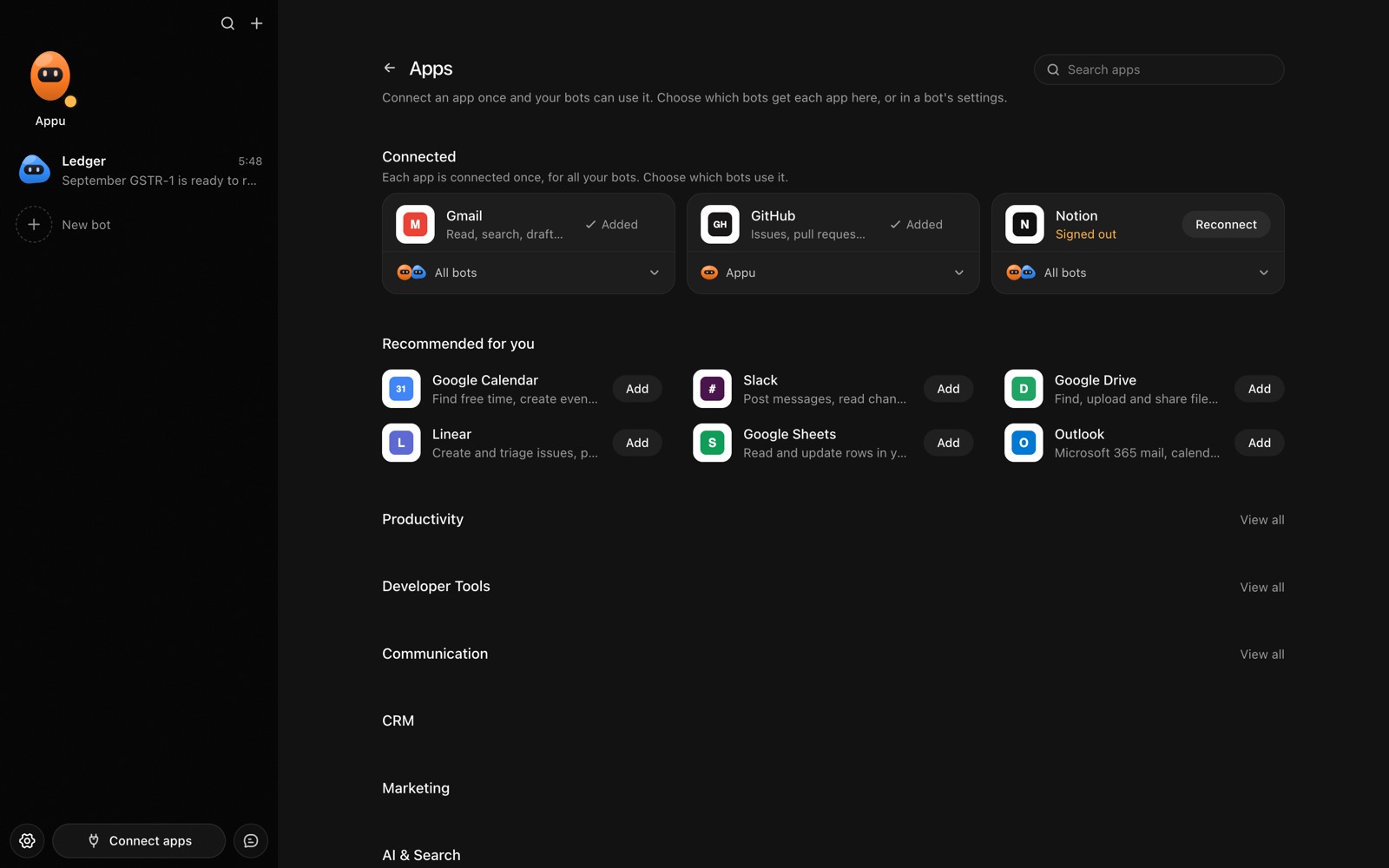
In AppuBot you connect an app once and then choose which bots may use it. Click "Connect apps" in the sidebar, sign in with a Composio account (the service that runs the app sign-ins; it has a free plan), press Add next to Gmail, Google Calendar, Slack, Notion, Outlook or Google Sheets, and approve access on that app’s own screen in your browser. Each connected app then has a switch per bot.

The Apps page in AppuBot with Gmail, GitHub and Notion connected and more apps to add
Connect an app once, then choose which bots may use it.

Step by step

  1. Open AppuBot on your computer and click Connect apps in the sidebar. The Apps page opens.
  2. Press Sign in with Composio and finish in your browser. Composio is the service that handles each app’s sign-in for AppuBot. You sign in to it once, with an account of your own.
  3. Find an app, for example Gmail, and press Add. Your browser opens that app’s own sign-in and consent screen. Approve it there.
  4. Do the same for Google Calendar, Slack, Notion, Outlook, Google Sheets and anything else you use.
  5. On each connected app, under "Bots that can use" it, switch it on or off for each bot. New bots start with every connected app on, so switch off what a bot shouldn’t touch.
  6. Ask a bot for something that needs the app: "What’s on my calendar tomorrow, and which emails should I answer first?"

Which apps can you connect?

The Apps page lists about 1,600 apps. These six sign in through your browser, with no API key: Gmail, Google Calendar, Slack, Notion, Outlook and Google Sheets. Many of the less common apps ask for an API key from that app instead.

An app that isn’t on the page can still be used through computer use: the bot opens its website or its desktop app and works in it the way you would.

What does the bot see, and where do the sign-ins live?

Each app’s connection is held by your Composio account. AppuBot keeps only its Composio session, on your computer, and the AI never sees those tokens. What an app returns, such as the text of an email or a calendar entry, does go to the bot’s AI provider to be worked on, the same as when you paste it into that AI yourself. A bot can reach only the apps you switched on for it.


Will it send things without asking?

That follows the bot’s permission choice. On "Approve for me" it asks before anything important, such as sending an email or posting a message, and it waits as long as you take. On "Full access" it acts without asking, so keep that for bots you trust with the app. If there is something a bot must never do, such as sending an email without showing you the draft, say so once in its instructions. See approvals.

What does it cost?

AppuBot is free on your own computer, and connecting apps adds no charge from AppuBot. Composio has a free plan with a monthly limit on how many times your bots can call apps; its pricing page has the current numbers. Your bots keep using the AI plan you already have.

From your phone, and on AppuBot Cloud

Apps are connected per computer. A bot you message on Telegram uses its connected apps as usual, and the AppuBot phone app has the same Connect apps page for the computer it is paired with. On AppuBot Cloud, the paid add-on, you connect apps on the cloud computer in the same way.

Sources

Facts about other products are from their makers’ pages as of 25 November 2026 and may have changed since. Product names are trademarks of their owners.

Questions

Do I need an AppuBot account to connect apps?

No. The sign-in is to your own Composio account, not an AppuBot one.

Can I choose which bot sees my email?

Yes. Every connected app has a switch for each bot, and a bot with the switch off can’t use the app.

I use Outlook, not Gmail. Is it the same?

Yes. Outlook is on the Apps page and connects the same way, through its own sign-in in your browser.

How do I take an app away from a bot?

Turn its switch off on the Apps page and that bot loses access at once. You can also disconnect the app completely.

What if my app isn’t listed?

A bot can still work in it through computer use, by opening its website or desktop app and clicking and typing in it.

Meet your first bot

An AI teammate that works on your Mac or in the cloud, and tells you on Telegram